
Bublox Hub Guide: What the Mobile Roblox App Does and How to Get It
Bublox Hub is a free Android and iOS app for Roblox players: raffles, daily streaks, VIP servers and guides. What each tab does and how to get it.
Bublox Hub (listed as "Bublox - hub" on Google Play and as "Bublox" on the App Store) is a free mobile app for Roblox players. It collects game guides, free raffles, links to VIP servers and a list of third-party tools in one place, with a daily streak that rewards you for opening it. This guide goes through what each section actually does, how to get the app, and what to know about ads, the Premium subscription and your data.
In short: Bublox Hub is a phone and tablet app, not a PC program. You get it from Google Play or the App Store, or you find it already installed inside NovaPlay's Android home screen. It is independent from Roblox.
What is Bublox Hub?
Bublox Hub is a companion app for people who play Roblox. It does not run Roblox games itself. Instead, it gives you content around the games you already play: guides and featured picks, raffles where you enter with free tickets, lists of VIP servers you can open, and a section with outside tools.
The app is published on Google Play by MKdevs, a developer based in Chile, and on the App Store under MKDEVS APPS. Its store listing states clearly that Bublox Hub is not affiliated with, authorized or endorsed by Roblox Corporation. Roblox and its games belong to their respective owners.
Which platforms does it run on?
Bublox Hub is a mobile app:
- Android: on Google Play, package
com.mkdevs.bublox. - iPhone and iPad: on the App Store, requires iOS 13 or later.
There is no Windows version. If you want it on a PC, the way to do that is through an Android emulator, which is covered further down.
The five tabs
The app has a bottom bar with five tabs: Home, Raffles, Tools, Servers and Settings. The screenshots below are from the Spanish version of the app.
Home
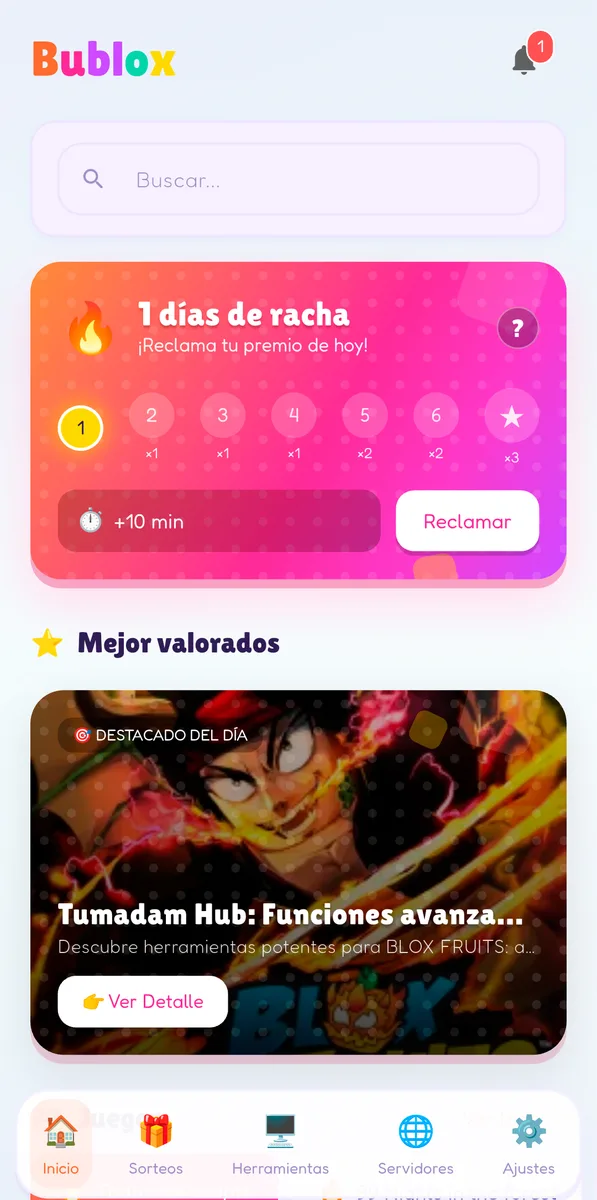
The Home tab: search, the daily streak card and the "Top rated" section with the featured pick of the day.
The Home tab opens with a search bar and a notification bell. Below that sits the daily streak card: a row of seven days with a reward multiplier under each one (the last day is marked with a star and the biggest multiplier), a Claim button, and a timer for the next claim. Coming back on consecutive days is what grows the streak.
Further down, Top rated shows a large "Featured of the day" card with a View details button, followed by a list of games you can browse.
Raffles
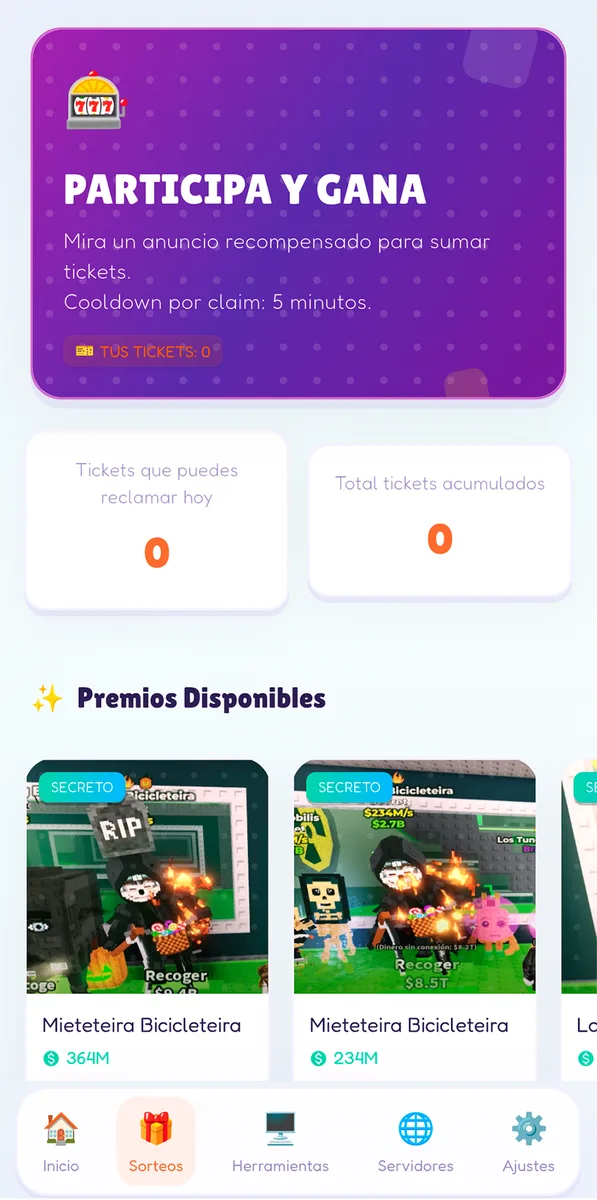
The Raffles tab: your tickets, today's claimable tickets and the prizes currently on offer.
The Raffles tab is where you collect tickets and spend them on giveaways. In the current version you earn tickets by watching a rewarded ad, with a five-minute cooldown between claims. Two counters show the tickets you can still claim today and the total you have collected, and an Available prizes row lists what is being raffled, each with its rarity tag.
The store listing adds that tickets also come from missions and inviting friends, that they are never sold for money, and that winners are picked with a "provably fair" system based on a hash published when the raffle ends.
Tools
The Tools tab starts with a collapsible video tutorial and then lists third-party Roblox tools, mostly script executors such as Delta. Each card has an Open button that takes you to the download and shows whether that entry is unlocked.
These are outside programs, not part of Bublox Hub and not made by Roblox. Using an executor breaks Roblox's Terms of Use and can get an account banned. If you are thinking about it, read our Delta on PC guide first: it explains the risks and how it works on an emulator.
Servers
The Servers tab lists VIP servers grouped by game. The header shows which game the list belongs to, and each entry shows the server's player count, its unlock status and a button that opens the server link so you can join it from Roblox.
Settings
Settings is split into three groups:
- Account: your profile (view and edit it) and your Premium status.
- Preferences: a notifications switch, language (Spanish or English) and a light or dark theme.
- Community: a link to the app's Discord server.
Account and sign-in
According to the store listing and the App Store version notes, you create an account or sign in with Google or Apple. Linking your Roblox account is optional; the listing says it is used for achievement tracking. You need an account for anything tied to you, like raffle tickets and your streak.
Ads and the Premium subscription
Bublox Hub is free to download and contains ads; Google Play and the App Store both mark it as having ads and in-app purchases. Some rewards, like raffle tickets, come from watching ads.
The in-app purchase is Premium, a monthly subscription that removes ads. The Google Play listing says it also doubles mission rewards and that the main content (raffles, guides, the spin wheel and VIP servers) stays free without it. On the US App Store the subscription is listed as "No Ads - Monthly" at US$2.99; prices can vary by country.
Privacy basics
The store pages give a quick picture of what the app handles:
- Google Play (Data safety): the developer declares that no data is shared with third parties, that the app may collect app info and performance data, that data is encrypted in transit, and that you can request deletion.
- App Store (App Privacy): the developer declares usage and diagnostics data that may be used for tracking and third-party advertising, plus contact info (email) for app functionality.
Google Play rates the app "Everyone"; the App Store rates it 13+. As with any app that has raffles and ads, it's worth reading the privacy policy linked from both store pages, especially if a younger player will use it.
Bublox Hub inside NovaPlay
NovaPlay is the Windows Android emulator this site is about. Its Android home screen, NovaPlay Home, ships with Bublox Hub installed next to Roblox, and NovaPlay keeps it updated when a new version is available. So if you use NovaPlay you don't need to download it separately: open it from the home screen like any other Android app.
It runs there exactly as it does on a phone. It is the same mobile app, just on a bigger screen and with a mouse and keyboard. For getting Roblox itself working on a computer, see how to play Roblox on PC.
Bublox Hub also connects to one other app. MKdevs publishes Bloxly, a codes and guides app with its own raffles, which gives a raffle boost to users who use the same email on Bublox and Bloxly.
FAQ
Is Bublox Hub free? Yes. It is free to download and use, with ads. Premium is an optional monthly subscription that removes them.
Is Bublox Hub an official Roblox app? No. It is made by MKdevs and its listing states it is not affiliated with or endorsed by Roblox Corporation.
Is there a PC version? No. It is available for Android and iOS. On a PC you can run the Android version inside an emulator such as NovaPlay, which includes it.
Do I have to pay to enter the raffles? No. Tickets come from rewarded ads and other free actions, and the listing says tickets are never sold.
Does it change anything inside Roblox? Bublox Hub itself doesn't. It shows guides, raffles and server links. The Tools tab points to third-party executors, and using those is against Roblox's rules.
What languages does it support? The app's settings let you switch between Spanish and English.
NovaPlay is an independent Android emulator and is not affiliated with, endorsed by, or associated with any third-party game or brand mentioned. Game names are used for descriptive purposes only.