
Fix Google Play Not Working on an Android Emulator
Google Play crashing, looping on sign-in or stuck at 0% on your emulator? Fix the clock, cache, uncertified device and network causes in order.
When Google Play fails on an Android emulator, the cause is usually one of four things: the emulator's clock is wrong, Play Store or Play Services has stale data, the virtual device is not Play Protect certified, or the network is blocking downloads. Check them in that order; most problems end at the cache or certification step.
The symptoms vary: a sign-in loop that never finishes, a "This device isn't Play Protect certified" message, or a download stuck at 0%. This guide goes from the quickest fix to the most involved one.
Why does Google Play break on emulators?
Google Play relies on Google Play Services to sign in your account, identify the device and manage downloads. On a phone the manufacturer ships a certified build and Google keeps it updated. On an emulator, Play Services can fall out of sync after an image update, when the virtual clock drifts, or when Google does not recognize the virtual device as certified.
Several of the errors below look different but share the same two or three root causes, so work through the steps in order.
Step 1: Check the date and time
Google sign-in depends on the device clock being correct. Google's basic Play Store troubleshooting lists wrong date and time as one of the first things to check.
Inside the emulator:
- Open Settings and search for Date & time.
- Turn on Automatic date & time and Automatic time zone.
- If it is already on and the time is still wrong, turn it off, wait a few seconds, and turn it back on.
- Restart the emulator completely, not only the app.
Also check the Windows clock: right-click the taskbar clock, choose Adjust date and time, then Sync now.
Step 2: Clear cache and data for Play Store, then Play Services
Stale cached data is behind many Play Store failures. Google's own page on fixing problems with the Google Play Store app calls clearing the Play Store's cache and data the most common solution, and treats clearing Play Services data as a later, more drastic step.
- Go to Settings → Apps (on Android 9: Apps & notifications → See all apps).
- If system apps are hidden, open the three-dot menu and choose Show system.
- Open Google Play Store → Storage and tap Clear cache, then Clear storage.
- Restart the emulator and try Play Store again.
- If it still fails, open Google Play services → Storage, tap Manage space or Clear storage, and confirm.
- Restart the emulator and sign in again.
Google warns that clearing Play Store data can remove settings such as parental controls, and clearing Play Services data can remove saved payment methods and sign-in data. You may be asked to sign in again, which is expected.
Step 3: How do you fix "This device isn't Play Protect certified"?
To check the status, open Play Store, tap your profile icon, go to Settings → About, and look at Play Protect certification, as described in Google's certification help page. Google says Google apps on uncertified devices are not licensed and may not work correctly.
Since March 2018, Google has blocked Google apps on many uncertified devices, as Android Police reported at the time. Google offers a registration page for people running custom Android builds.
Option A: Register the device ID
- Get the device's Google Services Framework (GSF) Android ID. This is not the ID shown in regular settings; Play Services generates it, and apps such as "Device ID" on the Play Store display it (if Play Store will not open, you may need to install one from its APK).
- On any browser, go to
google.com/android/uncertifiedand sign in with the same Google account you use in the emulator. - Paste the GSF ID and register it.
- Wait a while (it can take from minutes to hours), restart the emulator and open Play Store again.
A factory reset or a fresh emulator instance generates a new GSF ID, so you would need to register again after resetting.
Option B: Use an emulator build that ships with Google Play
Emulators that include Google Play from the start usually avoid this step. NovaPlay, for example, comes with the Play Store preinstalled, as the app drawer below shows. If your current emulator shows the certification error on every reset, testing another emulator can be faster than registering over and over.
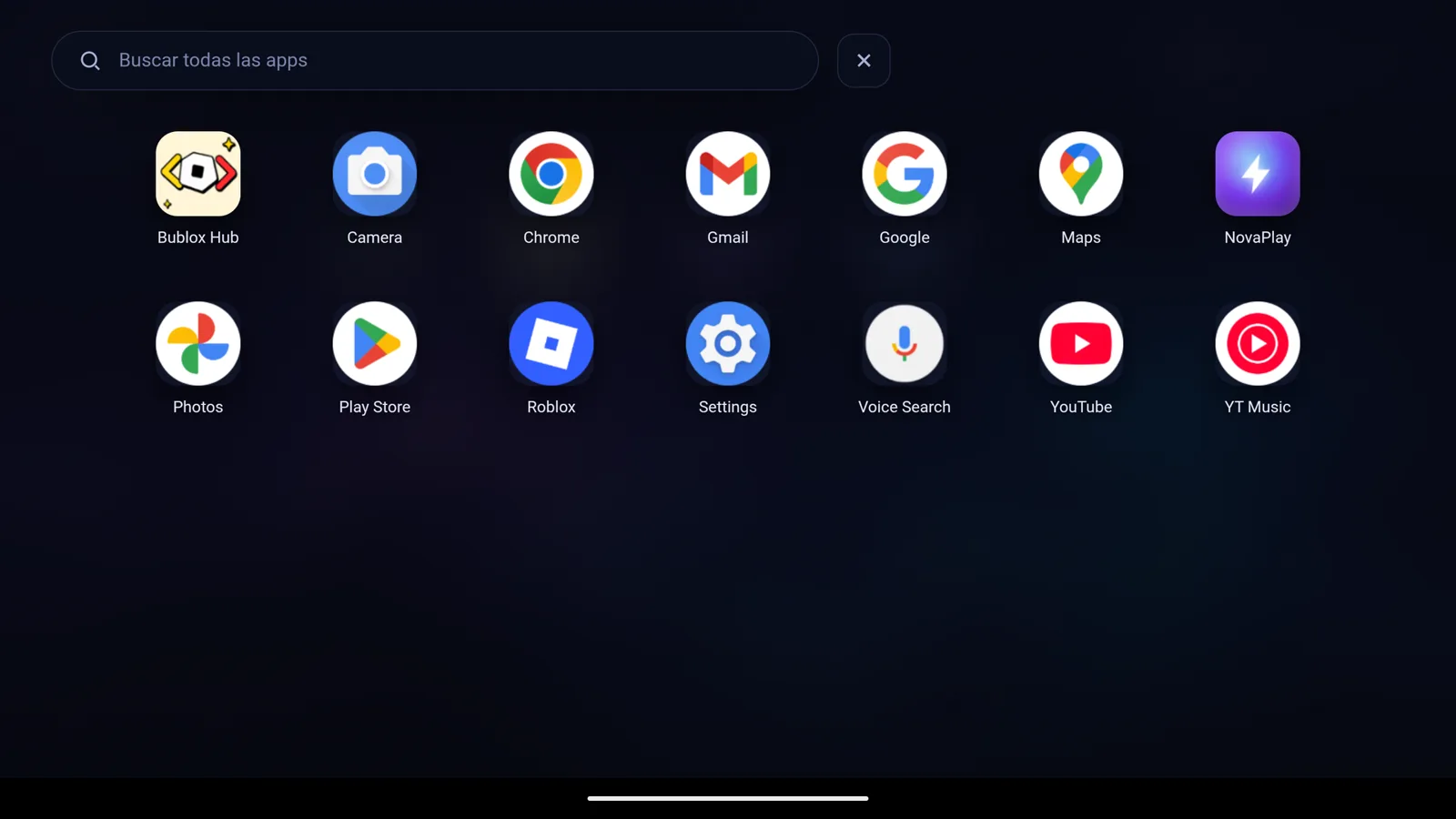
NovaPlay's app drawer after first launch, with Play Store preinstalled (interface shown in Spanish).
Step 4: Fix sign-in loops
A sign-in loop, where you enter your password, the spinner runs, and you land back on the login screen, usually has one of three causes:
- Google's security check is holding the sign-in because the device is new to your account.
- Google Play Services is out of date and cannot finish signing in.
- A VPN or proxy is interfering with the connection.
Security check: after a failed attempt, look at your phone or Gmail. Google often sends a "new sign-in" alert or asks you to confirm on a device you already use. Approving it there can unblock the emulator.
Outdated Play Services: if Play Store cannot update it, you can install a newer Play Services APK manually from a source that checks signatures, such as APKMirror. Pick the variant that matches the emulator's architecture and Android version, then clear cache as in Step 2. Our guide on installing an APK on an emulator covers the install itself.
VPN or proxy: turn off any VPN on Windows while you sign in. Sign-ins from new devices through VPN exit nodes are more likely to be challenged.
Step 5: Why are Play Store downloads stuck at 0%?
If you are signed in and the progress bar never moves, the problem is usually storage or network, not your account.
- Storage: Google's troubleshooting page says a device low on space can stop downloads and recommends at least 1 GB free. Check the emulator's storage in Settings → Storage.
- DNS inside the emulator: open the Wi-Fi settings, long-press the connected network, choose Modify network, switch to static IP, and set DNS 1 to
8.8.8.8and DNS 2 to8.8.4.4, the addresses Google Public DNS documents. Save and reconnect. - Windows Firewall: a strict firewall can block the emulator. Open Windows Defender Firewall → Allow an app through Windows Defender Firewall and make sure your emulator's executable is allowed on private and public networks.
- Pending Play Store update: force-stop Play Store, clear its cache, reopen it, and leave it on the home screen for a minute. It often updates itself in the background.
If only some apps are stuck while others download, the app may not support the emulator's Android version or device profile. Check the app's listing for its minimum Android version.
Step 6: Reset the virtual device (last resort)
If nothing above works, the virtual device's data is probably in a bad state. The cleanest fix is to reset it or create a new one from the original image, following your emulator's own instructions.
Before you do:
- Make sure your games save progress to an account; see how to move game progress between devices.
- Note which apps you had installed.
After the reset, go through Steps 1 to 3 on the fresh device before installing anything else. Remember that a reset creates a new GSF ID, so a manual certification registration has to be repeated.
Quick reference table
| Symptom | Most likely cause | First fix |
|---|---|---|
| Sign-in loop | Stale data or a security check | Clear Play Store data; approve the sign-in on your phone |
| "Device isn't Play Protect certified" | Unregistered GSF ID | Register it at google.com/android/uncertified |
| Download stuck at 0% | Low storage, DNS or firewall | Free space, set DNS to 8.8.8.8, check the firewall |
| Play Store closes on open | Corrupted Play Store or Play Services data | Clear Play Store data, then Play Services |
| Apps install but will not open | ARM-only app without translation, or an integrity check | Check the emulator supports ARM apps; some apps block emulators |
| Clock-related sign-in errors | Wrong system time | Turn on automatic time and restart |
How do you keep Google Play working?
- Restart the emulator after long idle periods instead of resuming a saved snapshot, which can leave the clock behind.
- Let Play Services update: check it occasionally under Settings → Apps → Google Play services → App details.
- Prefer stable emulator releases over test builds, which sometimes break Google services for a while.
- Avoid switching Google accounts repeatedly in the same virtual device; each new account is another sign-in from a new device.
For performance settings once Play Store works, see the best emulator settings for gaming.
Google Play on emulators: FAQ
Why is Play Store missing in the Android Studio emulator? Only virtual devices built from a device definition with the Google Play logo, and a system image that includes the Play Store, have it. Images labeled "Google APIs" include Play services but not the store, according to Google's guide to managing virtual devices. Create a new AVD with the Play logo; note that those images cannot be rooted.
What does "Your device isn't compatible with this version" mean? The app's requirements do not match the virtual device. Google Play hides or blocks apps based on the minimum Android version, required hardware features, the CPU architecture of native libraries and the OpenGL ES version, as its filters documentation explains. Clearing cache will not change that; you need an emulator with a newer Android version or a different device profile.
Is it safe to sign in to your Google account on an emulator? With an emulator downloaded from its developer's official site, it is much like signing in on a new phone. Turn on 2-Step Verification, and if you are only trying an emulator briefly, use a secondary account.
Summary
Most Google Play failures on emulators come from a wrong clock, stale Play Store data, an uncertified device ID, or storage and network problems. Work through the steps in order; the cache and certification steps fix the majority of cases. If you want an emulator where Play Store comes preinstalled, NovaPlay is one option.
NovaPlay is an independent Android emulator and is not affiliated with, endorsed by, or associated with any third-party game or brand mentioned. Game names are used for descriptive purposes only.