
How to Install an APK on an Android Emulator (Safely)
Sideload an APK on an Android emulator: allow unknown apps, pick a safe source, install by drag and drop, file manager or adb, and fix failed installs.
To install an APK on an Android emulator, download the file from a source you trust, then drag it onto the emulator window. If drag and drop is not supported, copy it into the emulator and open it with a file manager, or run adb install from Windows. Android asks you once to allow installs from that source.
What is an APK and why would you sideload one?
Every app you install from the Google Play Store arrives as an APK, short for Android Package. It is the same format a developer uses to ship the app, delivered through Play instead of directly to your device. When you sideload, you skip Play and install the APK file yourself.
There are legitimate reasons to do this inside an Android emulator on PC:
- The app is not available in your region on the Play Store.
- You need a specific older version of an app after an update broke something for you.
- The app is not on Play at all: many indie games and beta builds are distributed as direct downloads.
- You are testing your own app before publishing it.
Sideloading also skips the checks Google runs on Play Store apps, which makes choosing the source the most important part of the process. That is covered below.
If you only want mainstream games, the Play Store inside your emulator already handles installs and updates, so you do not need to sideload. In NovaPlay the Play Store comes preinstalled.
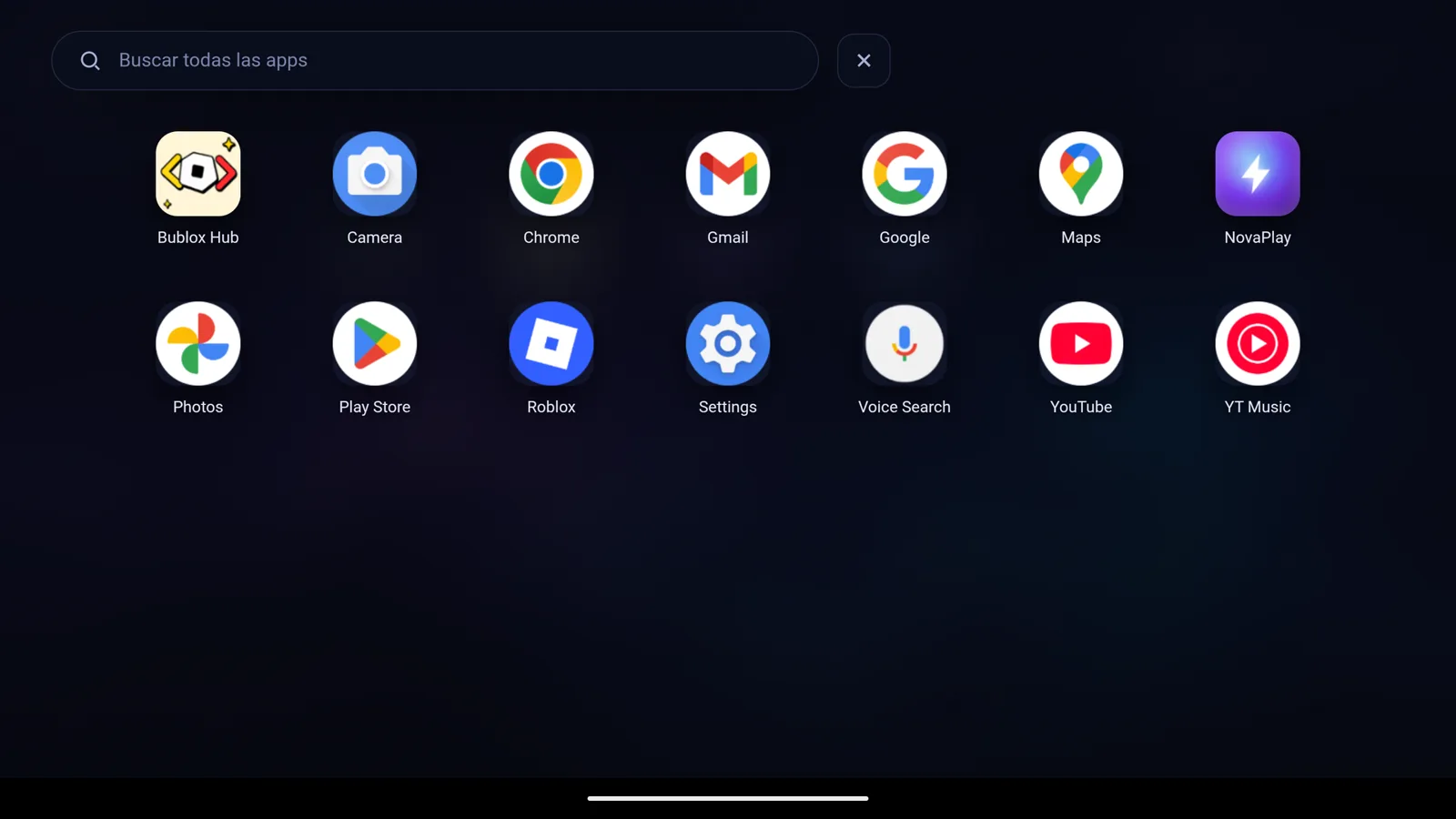
NovaPlay's app drawer on first launch, with Play Store, Chrome and YouTube already installed (interface shown in Spanish).
How do you allow installs from unknown sources?
Android blocks APK installs from outside the Play Store by default. You grant the permission once, and it stays on until you turn it off.
On Android 8 and newer (most current emulators):
Since Android 8.0 the permission is granted per app: you allow a specific app (a file manager or a browser) to install other apps, as described in Android's documentation on alternative distribution.
- Open Settings inside the emulator.
- Go to Apps (or Apps & notifications).
- Open Special app access (on some builds it sits under the three-dot menu or under Advanced).
- Tap Install unknown apps.
- Find the app you will use to open the APK, usually Files or a browser, and turn on Allow from this source.
On older Android 7 images:
- Go to Settings → Security.
- Turn on Unknown sources.
If you drag the file onto the emulator window instead, Android usually shows the permission prompt the first time on its own.
Which APK sources can you trust?
"Download from a reputable site" is not much of a rule, so here is a practical checklist.
Signs of a trustworthy source:
- The developer's own website or its GitHub releases page. If a developer publishes an APK or a beta build, that is the file you want.
- APKMirror (apkmirror.com). According to its FAQ, it checks that every new upload is signed with the same key as the earlier versions of that app, so a file signed by someone other than the developer is rejected.
- F-Droid, a store that only lists free and open-source apps whose code anyone can inspect, as F-Droid explains on its about page.
- Official Discord servers or forums where the developer links the file.
Signs to walk away:
- Sites that send you through several ad redirects before the download starts.
- Any APK that tells you to disable your antivirus before installing.
- A file much larger or smaller than the size shown on the app's Play listing.
- An app that asks for device administrator access right after you open it.
When in doubt, upload the file to VirusTotal (virustotal.com) before installing. Per VirusTotal's documentation, it checks files with more than 70 antivirus scanners, and it is free.
Method 1: Drag and drop (easiest)
NovaPlay and most modern emulators install an APK when you drop it on the window. NovaPlay also has an APK picker if you prefer to browse for the file.
- Download the APK to your PC and note where it saved (usually
C:\Users\YourName\Downloads\). - Open File Explorer and find the file.
- Drag the
.apkfile onto the emulator window. - Release it. The emulator detects it and starts the install.
- Confirm with Install if Android asks.
If nothing happens, click the emulator window once so it has focus, then drag again.
Method 2: Copy the file into the emulator and open it
- Get the APK into the emulator's storage. Many emulators offer a shared folder or an import button for this; check your emulator's toolbar or settings.
- Open the built-in file manager (or Files by Google from the Play Store).
- Browse to the APK and tap it.
- Android opens the package installer. Tap Install.
You can also use adb (Android Debug Bridge) from a Windows command prompt, which is part of Google's Android SDK Platform Tools. The official adb documentation gives the basic command:
adb install "C:\path\to\yourapp.apk"
For apps split into several APK files, use adb install-multiple with all the files. First connect adb to the emulator; the address and port depend on the emulator, so check its documentation or settings.
Method 3: Download it with a browser inside the emulator
- Open Chrome (or another browser) inside the emulator.
- Go to the APK download page.
- Download the file. Chrome saves it to Android's Downloads folder.
- Tap the "download complete" notification and choose Open.
- Follow the installer prompt.
This works well with APKMirror or F-Droid, which offer direct download links.
Why did my APK fail to install?
Even a legitimate APK can fail. These are the common error messages and what they usually mean:
| Error | Most likely cause | Fix |
|---|---|---|
| App not installed | An existing install signed with a different key, or a corrupt APK | Uninstall the existing version first; download the APK again |
| Package appears to be invalid | Wrong CPU architecture or a newer Android version than the emulator runs | Get the right variant; check the app's minimum Android version |
| Installation blocked | Unknown apps not allowed for the installing app | Repeat the unknown sources step above |
| Insufficient storage | The emulator's virtual disk is full | Uninstall unused apps or free space as your emulator allows |
| Parse error | Incomplete download or corrupted file | Delete and download again; compare the checksum if one is published |
Architecture mismatch is the most confusing failure. Many APK sites offer several variants: arm64-v8a, armeabi-v7a, x86 and x86_64. Emulators on Intel and AMD PCs run an x86-based Android image and use a translation layer for ARM-only apps. NovaPlay runs 64-bit Android with ARM translation, so ARM-only games can run on an Intel or AMD PC. If one variant refuses to install, try x86_64 first, then arm64-v8a.
Android version matters too: an APK built for a newer minimum Android version than the emulator's will not install. Check the emulator's version in Settings → About phone and compare it with the app's minimum on its store listing.
If an app installs but closes right after launch, it may depend on Google Play Services or Play Integrity checks that fail on emulators. This is common with banking apps and some games. It is not a sideloading problem: those apps are built to refuse environments they do not certify.
Do you need to sideload popular games?
Usually not. Most popular mobile games ship through Play and install normally there. Roblox, for example, is on the Play Store and also has an official Windows client; our guide on playing Roblox on PC compares both options.
Sideloading is useful for region-locked titles, public betas the developer distributes directly and apps that are not on Play. Only install APKs the developer distributes or allows to be redistributed; unofficial copies of paid or discontinued games can break the developer's terms and are a common way to spread malware.
For ideas on what to play, see our best free mobile games of 2026.
How do you keep sideloaded apps updated?
Sideloaded apps do not update automatically through Play. Your options:
- Check the source every few weeks and install the new APK over the old one. Android keeps your data as long as the package name and signing key match.
- If the app is on F-Droid, install the F-Droid client inside the emulator; it handles updates for F-Droid apps.
- If the app later appears on the Play Store, Play can only update it over your copy when the signing key matches. If it does not, uninstall your copy (back up progress first) and install from Play.
APK installs: FAQ
What are XAPK, APKM or APKS files?
They are bundles of several split APKs, sometimes with extra game data. They exist because Google Play builds optimized APKs for each device configuration from a single app bundle (Android App Bundle documentation). Android's standard installer cannot open them: use the installer app from the site that offered the bundle, or, if the archive contains plain .apk files, install them together with adb install-multiple.
Can you install an APK on Windows without an emulator? Not anymore. Windows cannot run APKs on its own, and Windows Subsystem for Android, which could, left the Microsoft Store on March 5, 2025, according to Microsoft's release notes. An emulator is the practical route today.
How do you uninstall a sideloaded app? The same way as any app: press and hold its icon and choose Uninstall, or go to Settings → Apps, open the app and tap Uninstall. This deletes its local data, so save any progress to an account first.
Summary
Allow unknown apps for the installer you use, get the file from the developer or a source that checks signatures, and install by drag and drop, a file manager or adb install. The install itself takes a minute or two; checking the source first is the part worth your time.
If you want an emulator for this, NovaPlay comes with the Play Store preinstalled and installs APKs by drag and drop or with its APK picker. For performance tuning after install, see our guide on emulator settings for gaming.
NovaPlay is an independent Android emulator and is not affiliated with, endorsed by, or associated with any third-party game or brand mentioned. Game names are used for descriptive purposes only.