
How to Play Roblox on PC at High FPS (2026 Guide)
Play Roblox on PC with the official Windows client, or run the Android app in an emulator. Setup, keyboard and mouse, FPS settings and fixes for 2026.
The easiest way to play Roblox on PC is the free official Windows app from roblox.com or the Microsoft Store: it supports keyboard and mouse and uses your normal account. An Android emulator is the alternative when you want the mobile version of a game or a fallback when the desktop client fails. This guide covers both.
Does Roblox Have an Official PC Client?
Yes. The official Roblox download page offers a Windows app, and it is also listed on the Microsoft Store. It's free, supports keyboard and mouse natively, and uses the same account, friends and purchases as your phone. According to Roblox's system requirements, it installs on 64-bit Windows 10 or Windows 11 and needs a graphics card with DirectX 10 feature level support. If all you want is to play Roblox on a computer, start there.
When an Android Emulator Makes Sense Instead
Running the Android version of Roblox through an emulator is an alternative for specific situations:
- Touch-first experiences. Some Roblox games are designed for phones first. Their UI and tap buttons can feel awkward on the desktop client, while the Android version with mapped keys keeps the layout the developer intended.
- When the Windows client gives you trouble. If the desktop client won't launch or keeps crashing on your machine, the Android app is a different code path that may work while you sort it out. The Roblox crash fix guide covers the desktop side.
- The mobile interface with a keyboard. With keyboard and mouse mapping, you keep the mobile layout but play it with WASD and the mouse.
- Android-only tools. Some things only exist as Android apps. The Delta on PC guide explains how players run that one through an emulator, and what the risks are.
- One launcher for all your mobile games. If you already use an emulator for other titles, adding Roblox to the same setup means one less app to manage.
There is one hard limit. Roblox's Android Remote Attestation check treats Android emulators as untrusted devices, and each game's creator decides whether to require it. A game that requires it won't open in any emulator; for those, the official Windows client is the only option on PC.
That said, this approach only makes sense when the emulator runs well on your hardware. The rest of this guide shows how to set it up with NovaPlay.
What You Need Before You Start
The Android version of Roblox is not particularly demanding, but the emulator layer adds overhead. These are NovaPlay's own requirements:
| Component | Minimum | Recommended |
|---|---|---|
| OS | Windows 10 64-bit | Windows 11 64-bit |
| RAM | 4 GB | 8 GB for 3D games |
| GPU | DirectX 11 capable | Dedicated GPU or a recent integrated one |
| Storage | ~12 GB free | ~12 GB free on an SSD |
| Virtualization | Intel VT-x or AMD-V enabled | Same |
Check virtualization first. Open Task Manager, go to the Performance tab, click CPU and look for "Virtualization: Enabled" in the right panel. If it says Disabled, you need to turn on Intel VT-x or AMD-V in your BIOS/UEFI. The virtualization guide walks through it. NovaPlay also works with Hyper-V turned on, and it includes a one-click fix if Windows Hypervisor Platform needs enabling.
Step 1: Download and Install NovaPlay
Download NovaPlay from the official site. The installer, NovaPlaySetup.exe, is about 15 MB. On first launch it downloads the Android engine (about 2.5 GB), and the full install takes around 9 GB, which is why the table above asks for roughly 12 GB free.
During that first start, NovaPlay adjusts CPU, RAM and FPS settings to your PC automatically, so you don't need to touch anything yet. The emulator runs 64-bit Android with ARM translation, which covers the Roblox app.
When the Android home screen loads, Google Play Store is already installed.
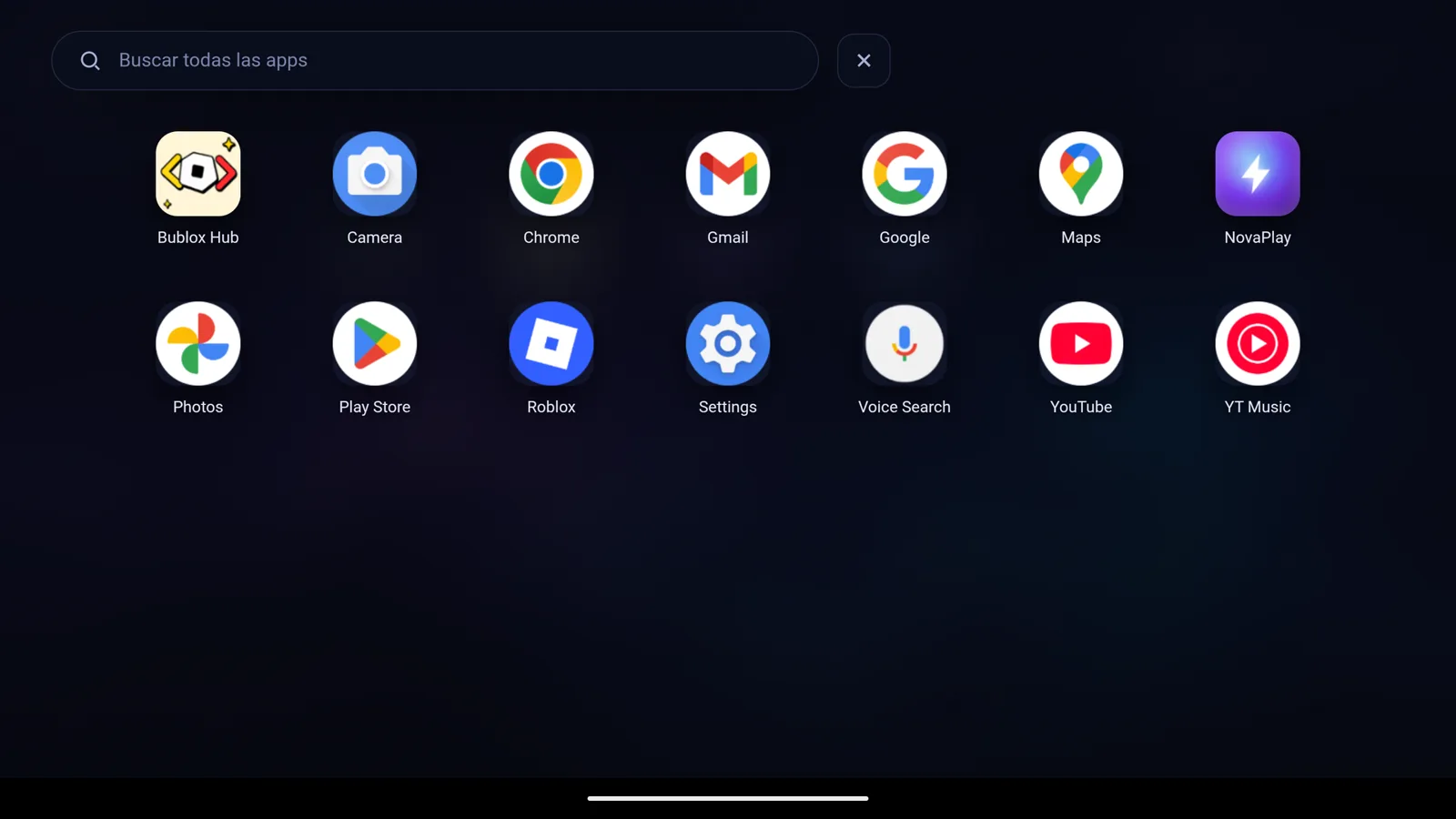
The NovaPlay app drawer with Google Play Store preinstalled (interface shown in Spanish).
Step 2: Install Roblox from the Play Store
- Open the Play Store from the home screen or the app drawer.
- Sign in with your Google account (this is separate from your Roblox account; it's only needed to download apps).
- Search for Roblox (published by Roblox Corporation) and click Install.
- Once installed, click Open on the Play Store page, or find the Roblox icon on the home screen.
Log in with your existing Roblox username and password. If you have two-step verification on (you should), have your email or authenticator app ready.
Step 3: Configure Graphics and FPS
Getting a smooth Roblox session inside an emulator means tuning two layers: NovaPlay's display settings and Roblox's own graphics.
NovaPlay settings
- FPS limit: NovaPlay has quick buttons for 30, 60, 120 and 144 FPS, plus fine adjustment up to 240. Start at 60. Roblox's Android app may stay at 60 on its own, so a higher limit only helps if your frame-rate counter shows a real gain. Vsync is available if you see tearing.
- Renderer: You can choose native GPU, DirectX 11 (ANGLE), OpenGL/Vulkan or software rendering. Keep the default first. If you get a black screen, flickering or crashes, switching renderer is the first thing to try; software rendering is a last resort because it is slow.
- Performance profile: On a modest PC, pick the power-saving profile. It asks less of your hardware, which helps on laptops and machines with 4 GB of RAM.
Roblox in-game graphics
Inside Roblox, open the menu and go to Settings:
- Graphics Mode: Manual.
- Graphics Quality: Start around the middle of the bar and raise it one step at a time while watching your frame rate.
- Movement Mode: Default (Thumbstick) works well with keyboard mapping.
For deeper tuning, including the desktop client, see the Roblox FPS boost guide.
How Do You Play Roblox on an Emulator with Keyboard and Mouse?
NovaPlay has keyboard and mouse mapping with default controls for supported games, and in Roblox it turns on mouse-look automatically, so the camera follows the mouse without you setting up a camera zone. If you want to adjust the layout, this is a sensible starting point:
- WASD → virtual joystick
- Mouse → camera
- Left click → tap (attack, interact)
- Space → jump
- E or F → the game's action button, depending on the experience
- Esc → back / menu
Different Roblox games put buttons in different places, so expect to move a key or two per game. You can export a layout you like and import it later. The keyboard and mouse controls guide covers mapping by genre.
Join a Game and Check Your Frame Rate
Open Roblox, pick a game and press Play. The first load takes longer while assets download; later joins to the same game are usually faster.
To see your frame rate, Roblox's performance documentation says Shift+F5 shows the debug stats summary in the client. On the desktop client that works directly; in an emulator, keyboard shortcuts depend on how keys reach the Android app, so if it doesn't respond, use the Performance Stats option in Roblox's settings menu when it's available. If the frame rate is steady, you're done. If not, lower in-game graphics quality two steps before changing anything else.
Troubleshooting Common Issues
Black screen on launch
This usually points to the renderer. Switch to a different one in NovaPlay (for example from native GPU to DirectX 11), then restart the emulator fully.
Roblox closes after the loading screen
Close heavy apps such as browsers with many tabs, especially if your PC has 8 GB of RAM or less. Update your GPU drivers, then try another renderer. If it only happens in one game, it may be that game's memory use rather than the emulator.
Stuck on "Joining game"
Check that your connection works in other apps, restart the Roblox app, and try a different server. If your firewall or antivirus has rules for NovaPlay, make sure it isn't blocking it. Roblox's server status can also be the cause, so it's worth checking whether others report problems at the same time.
Low FPS or constant stuttering
- Confirm virtualization is enabled.
- Update your GPU drivers.
- Drop the FPS limit to 30 temporarily. If stutter disappears, the bottleneck is your hardware at the higher target.
- On older machines, use the power-saving profile and see the best emulator settings for gaming guide.
Roblox Game Guides for PC Players
Once Roblox runs well, these guides cover specific games with PC controls in mind:
- Fighting and shooters: the RIVALS keybinds and ranked guide and the Jujutsu Shenanigans PC guide, where keybinds matter more than in most games.
- Social games: Adopt Me! on PC, Brookhaven RP on PC and Murder Mystery 2 on PC.
- Account and subscription questions: what Roblox Plus includes and whether it's worth paying for.
- Bublox Hub: a separate mobile app for Roblox players that comes preinstalled in NovaPlay; the Bublox Hub guide explains what it does.
For a ranked list of what to play, see the best Roblox games of 2026.
Tips for a Better Roblox Experience on PC
Use a wired connection for competitive games. Wi-Fi is fine for casual play, but Ethernet reduces rubber-banding in shooters and fighting games.
Keep Roblox and the emulator updated. Roblox updates its Android app often, and an outdated version can refuse to join games until you update it from the Play Store.
Record your best moments. NovaPlay has a built-in screen recorder and screenshot tool, which is handy for clips of Roblox rounds.
NovaPlay vs. Other Options
Other Android emulators such as BlueStacks, LDPlayer and MuMu Player can also run Roblox, each with its own requirements and trade-offs; the 2026 emulator comparison goes through them. And the native desktop client remains the right choice if Roblox is the only game you play. An emulator makes more sense when Roblox is one of several mobile games in your rotation.
Roblox on PC: FAQ
Is Roblox free on PC? Yes. The Windows app and the games are free to download and play. Robux and in-game purchases are optional.
Can you play Roblox in a browser without installing anything? Not through Roblox itself. You browse games and press Play on roblox.com, but the game runs in the Roblox app, which the site asks you to install the first time.
Can a low-end PC or an old laptop run Roblox? Usually, yes. Roblox's system requirements recommend at least 1 GB of RAM and 300 MB of free storage, plus the DirectX 10 graphics support mentioned above. An emulator asks for much more (NovaPlay needs 4 GB of RAM and about 12 GB free), so on a weak machine the official client is the better choice.
Can you use a controller to play Roblox on PC? Yes. Roblox's creator documentation says it accepts input from gamepads such as Xbox and PlayStation controllers. How well a controller works still depends on the game, since each creator decides how to support it.
Summary
If you only play Roblox, the official Windows client is the easiest path. If you want the mobile version of a game or a fallback when the desktop client misbehaves, an emulator works once the basics are right: virtualization on, about 12 GB free, a 60 FPS limit to start, and a renderer that suits your GPU. NovaPlay handles mouse-look in Roblox automatically, so most of the setup is installing the app and adjusting a few keys per game.
NovaPlay is an independent Android emulator and is not affiliated with, endorsed by, or associated with any third-party game or brand mentioned. Game names are used for descriptive purposes only.