
How to Play Grow a Garden on PC (2026): Economy, Mutations & Beginner Guide
Play Grow a Garden on PC: keyboard and mouse controls, how Sheckles, multi-harvest crops and weather mutations build value, plus beginner mistakes.
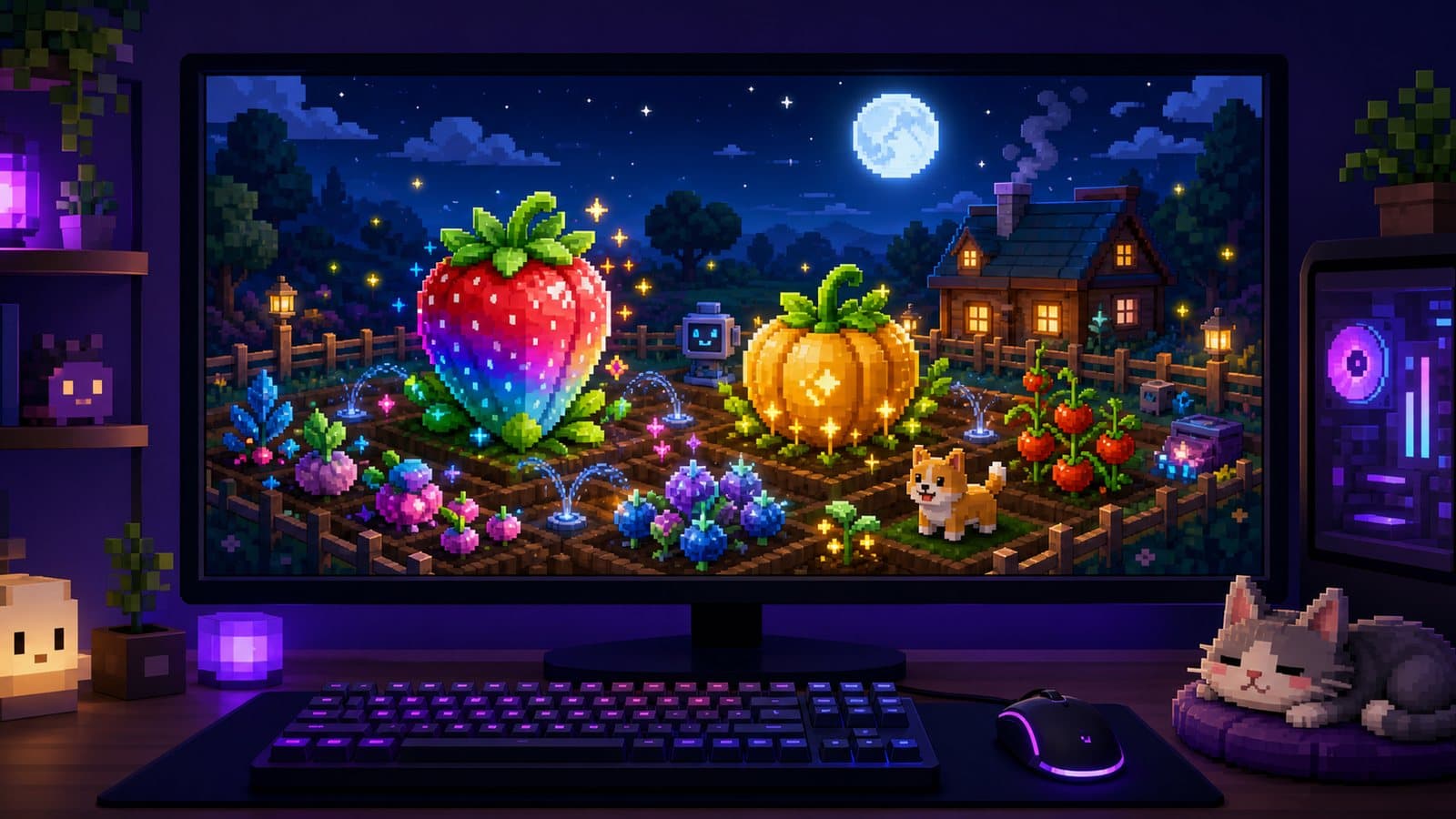
Grow a Garden took a very simple idea (plant seeds, wait, harvest, sell) and hid a surprisingly deep economy underneath it. It launched on Roblox on March 26, 2025 and reached 22.3 million concurrent players on August 23, 2025, according to Wikipedia. Two players can start on the same day and end the week in completely different places, and the difference is rarely luck.
To play Grow a Garden on PC, install the official Roblox client for Windows, sign in with your usual account and join the game: your garden is tied to the account, not the device. Walk with WASD, use E on interaction prompts and click through the shops. Then plant multi-harvest crops early and leave your best plants in the ground during weather events.
The core loop in one paragraph
You buy seeds at the Seed Shop with Sheckles, the in-game currency. You plant them in your plot, harvest the crops when they are ready, sell the harvest for more Sheckles, and reinvest in better seeds, gear and pet eggs. Seeds are organized by rarity, and rarer seeds generally produce far more valuable crops. Wikipedia notes that gardens keep growing while you are offline.
That loop sounds like a basic idle game. What turns it into an economy is the way crop value can be multiplied.
Single-harvest vs multi-harvest crops
- Single-harvest crops give you one harvest and then the plant is gone. They are fine for the first few minutes, because they are cheap and fast.
- Multi-harvest crops keep producing fruit without being replanted.
The difference compounds. A Sheckle spent on a single-harvest seed pays back once. A Sheckle spent on a multi-harvest plant keeps paying back for as long as the plant stays in your garden. Most early progress comes from converting your plot, step by step, into plants that produce on their own.
Common mistake: filling the whole garden with cheap single-harvest crops and replanting forever. Use them to bootstrap, then shift your budget to plants that regrow.
How do mutations work in Grow a Garden?
A mutation is a modifier on a crop that raises its sell value. According to Beebom's mutation guide, multipliers range from about 2× for common ones like Wet or Chilled up to 100× for Shocked, and several mutations can stack on the same fruit. Mutations come from weather cycles, admin events, pets and some gear; Wet, for example, can appear during rain or thunderstorms and from sprinklers. The list changes with updates, so treat any table as a snapshot.
What this means in practice:
- Crops still in the garden are the ones that can mutate. If you harvest everything the moment it ripens, you give weather nothing to work on.
- Your best crops deserve the most exposure. A multiplier on a rare crop is worth far more than the same multiplier on a carrot, so leave high-value plants in the ground through events.
- Put mutation gear, like sprinklers, next to your most valuable plants, not scattered across the plot.
- Check before you sell. A crop that looks ordinary may carry a mutation that makes it worth much more.
The Seed Shop and restocks
The Seed Shop rotates its stock on a regular cycle. Rare seeds don't appear on every restock, and when they do, they tend to sell out fast.
- Check the shop regularly instead of only when you run out of seeds.
- Keep a buffer of Sheckles, so a rare seed doesn't show up right after you spent everything on common ones.
- Don't buy expensive seeds too early. A high-tier seed bought before your income can support it often slows you down compared to several mid-tier multi-harvest plants.
Pets and eggs
Pets are a second layer of progression. You buy eggs from the Pet Shop, hatch them for a random pet, and equip pets for passive bonuses such as faster growth. Some pets can also cause mutations.
- Pets are an investment, not a collectible. Early on, pick eggs whose likely pets help your income.
- Match pets to how you play. If you check in often, bonuses that speed up growth help. If you play in short bursts, passive bonuses matter more.
- Pet details matter in trades. Traders look at specifics such as a pet's weight.
Trading without getting burned
Rare crops, mutated harvests and pets can be worth more to another player than the sell price at the stand.
- Know the value before you trade. Community value lists move with updates; use them as a rough guide.
- Watch for last-second swaps. Re-read the final trade window every time.
- Nothing legitimate needs your password. Offers to "dupe" items or give free pets in exchange for account access are scams, and exploit tools can get your account banned.
Playing Grow a Garden on PC
Official client or emulator?
The official Roblox client for Windows is the default choice. Download it from roblox.com or the Microsoft Store, log in, and your garden is there. A large monitor makes it easier to see your whole plot at once. Our Roblox on PC guide walks through the install, and this troubleshooting guide helps if the client won't start.
An Android emulator runs the mobile version instead, which makes sense if you prefer its interface or the Windows client keeps failing. In NovaPlay, mouse-look turns on automatically in Roblox, and the on-screen buttons can be mapped to keys (the keyboard and mouse guide explains how).
Controls in the Windows client
| Action | Input |
|---|---|
| Move around your plot | W A S D |
| Harvest, buy, open prompts | E when the prompt appears |
| Plant a seed | Equip it from the hotbar (number keys), then click the soil |
| Shops and menus | Left click |
| Rotate camera | Hold right click and drag |
| Zoom out to see the plot | Mouse wheel |
Settings for long sessions
Grow a Garden is one of the lighter Roblox games, but crowded servers during events can still stutter. Lower the graphics slider in the Esc menu, and cap the frame rate: 60 FPS in Roblox's Maximum Frame Rate setting, or the 60 button in NovaPlay, is plenty for a farming game and keeps your PC cooler. The Roblox FPS boost guide has more to try.
About AFK sessions
Roblox disconnects players after a period of inactivity, so an unattended session won't run forever. Leaving a PC on for hours also means heat and power draw. Short, regular check-ins during weather events do more for your garden than overnight marathons.
Quick FAQ
Is Grow a Garden free? Yes. Robux purchases can speed things up, but the core progression is available by playing.
What should a brand-new player do first? Plant cheap crops for your first Sheckles, move quickly into multi-harvest plants, keep a buffer for rare restocks, and leave your best crops in the ground during weather events.
Is using an emulator allowed? Running the official Roblox Android app in an emulator is different from exploits or scripts, but always follow Roblox's Terms of Use. Exploit tools and dupe scripts are what put accounts at risk.
If you like base-building games with a steal mechanic, our Steal a Brainrot guide is a good next read.
NovaPlay is an independent Android emulator and is not affiliated with, endorsed by, or associated with any third-party game or brand mentioned. Game names are used for descriptive purposes only.